

 How to Clear Browser Cache and Delete Search History on Your Phone and Computer
Every time you open a website, search for information or watch something online, your browser collects and stores certain information. It remembers websites you have visited, saves parts of webpages and keeps small pieces of information that help websites recognize your device when you return.
They are why opening a website for the second time can feel faster than visiting it for the first time. Your browser may already have some of the information it needs.
But there is another side of this convenience.
Imagine browsing a friend’s phone to search for a product online. You type a few words into the search bar, visit several websites and close the browser when you finish. Later, the next person opens the same browser and sees suggestions connected to previous searches or websites visited earlier.
Or consider a different situation: you visit a website that has recently been updated, but your browser continues displaying an older version of the page. You refresh it several times, yet the problem persists.
These situations involve two important aspects of web browsing: browser cache and browsing history.
Although both are part of the browsing experience, they serve different purposes. One helps websites load faster, while the other keeps a record of pages you have visited.
Understanding how to manage them gives you greater control over your browser, your device’s storage and some aspects of your online privacy.
The great news is that you do not need technical knowledge or special software to do this. You can clear browser cache and delete search history using settings already available on your phone or computer.
Let us explore how.
What Is Browser Cache?
Browser cache is a temporary storage area where a web browser saves copies of certain website resources.
These resources may include:
- Images and photographs.
- Websites logos and icons.
- Stylesheets that control how webpages look.
- JavaScript files that help websites function.
- Other website components.
When you visit a website, your browser downloads the resources required to display its pages. Instead of downloading everything again during your next visit, it may reuse previously stored copies.
This reduces repeated downloads and can make websites load faster.
Think of browser cache as a temporary collection of website materials that your browser keeps available for future visits.
For instance, when you regularly visit an online newspaper, your browser may store some of its images and design files. The next time you open the website, it can reuse those resources instead of downloading every component again.
However, cached information can sometimes become outdated or cause website display problems.
This is one reason clearing your browser cache can be useful.
What Is Search History?
Search history refers to record of searches made through a search engine or other search service.
Browsing history is slightly different. It records the websites and webpages you have visited.
For instance, searching for affordable laptops on Google creates a search activity record in the relevant service. Opening an online computer store creates a browsing history entry in your browser.
These records can make it easier to revisit information, but they can reveal some of your browsing interests and activities.
Your search history tells a story about the information you have looked for, while your browsing history records the webpages you have visited.
It is important to understand that deleting one does not automatically delete the other.
Why Should You Clear Browser Cache and Delete Search History?
Clearing browser data is not something you must do every day. Nevertheless, there are practical situations where it can help.
Here are some important reasons.
1. To protect your browsing privacy
Your browser history can reveal websites you have visited, articles you have read and information you have searched for.
If you share a computer or phone with other people, leaving your browsing history untouched may expose information you would rather keep private.
Deleting your local browsing history reduces the amount of information someone can see when they open your browser.
Your browser history may be personal, even when the websites you visit are completely ordinary.
2. To resolve website loading problems
Have you ever opened a website only to discover that some images are missing, buttons are not working or the page looks different from what you expected?
An outdated cached file can sometimes contribute to these problems.
Clearing the cache forces the browser to retrieve fresh copies of website resources when you revisit the page.
It does not fix every website problem, but it is a useful troubleshooting step.
3. To free up storage space
Browsers accumulate temporary files as you visit different websites.
Over time, cached images, scripts and other website resources can occupy storage space on your device.
Removing these files can recover some storage, although the amount varies depending on your browsing habits.
4. To remove unwanted browsing suggestions
When you begin typing into a browser’s address bar, it may suggest websites you have visited previously.
For example, typing the first few letters of an online shopping website may bring up a page you visited weeks ago.
Deleting browsing history can remove those locally stored suggestions.
5. To refresh outdated website information
Sometimes a website has been updated, but your browser continues using an older cached version of its files.
Cleaning the cache can encourage the browser to download the updated resources.
This is particularly useful when troubleshooting websites that display old images, outdated layouts or incomplete content.
How to Clear Browser Cache and Delete Search History
The process depends on the browser and device you use.
The following instructions cover some of the most widely used browsers.
1. How to Clear Cache and Search History in Google Chrome on Android
Google Chrome is one of the most commonly used browsers on Android devices.
You can remove cached files, cookies and browsing history directly from its settings.
Follow these steps:
- Open the Google Chrome app on your Android phone.
- Tap the three-dot menu in the upper-right corner.
- Select Delete browsing data.
- Choose the time range you want to clear.
- Tap More options to see the available categories.
- Select the information you want to remove, such as browsing history, cookies and cached images and files.
- Tap Delete data to confirm.
Understanding the time range
Chrome allows you to select different periods depending on what you want to remove.
- Last 15 minutes: removes recent browsing data.
- Lady hour: removes information from previous hour.
- Last 24 hours: removes data from the previous day.
- Last 7 days: removes data from the previous week.
- Lat 4 weeks: removes data from the previous four weeks.
- All time: removes the selected categories across the entire available history.
The exact options may vary by browser version and device.
Practical tip: if you only want to remove temporary website files, select cached images and files without selecting browsing history or cookies.
2. How to Clear Browser Cache in Google Chrome on a Computer
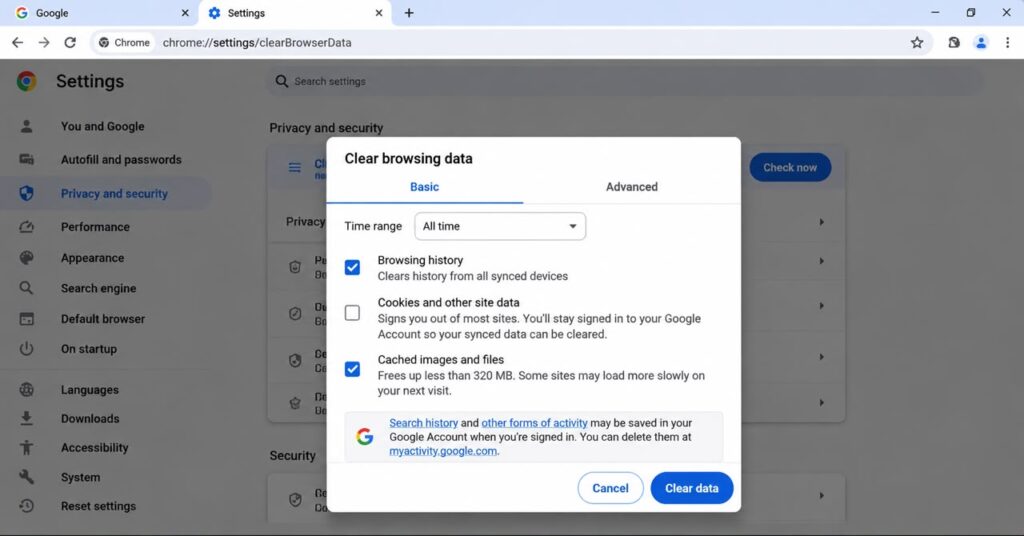 If you use Chrome on a Windows computer or Mac, the process is straightforward.
- Open Google Chrome.
- Click the three-dot menu in the upper-right corner.
- Select Delete browsing data.
- Choose your preferred time range.
- Select Cached images and files.
- Select Browsing history if you also want to delete the websites you have visited.
- Select Cookies and other site data if you want to remove stored website cookies.
- Click Delete data.
You can also access the deletion window using the keyboard shortcut:
- Windows: Ctrl + Shift + Delete.
- Mac: Command + Shift + Delete.
This shortcut opens Chrome’s browsing-data deletion settings.
Remember: You do not have to delete everything. Choose only the categories you actually want to remove.
3. How to Delete Search History and Website Data in Safari on iPhone
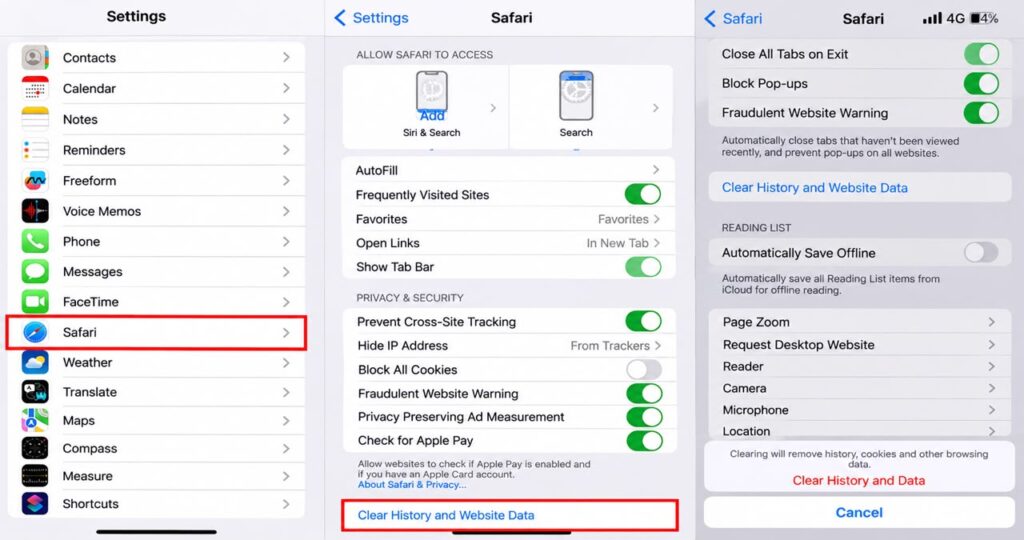 Safari is Apple’s default web browser on iPhones.
Unlike Chrome, which provides its own browsing-data menu, Safari offers important privacy controls through the iPhone’s Settings app.
To clear Safari history, cache and website data:
- Open your iPhone’s Settings.
- Scroll down and select Apps.
- Find and tap Safari.
- Select Clear History and Website Data.
- Choose the timeframe you want to clear, where available.
- Confirm by tapping Clear History.
This removes Safari browsing history and website data, including relevant cached files and cookies.
What if you want to clear website data but keep your browsing history?
You can do that separately:
- Open settings.
- Select Apps, then Safari.
- Tap Advanced.
- Select Website Data.
- Tap Remove All Website Data.
- Confirm your selection.
This is useful when you want to remove stored website information without deleting your browsing history.
4. How to Clear Cache and Browsing History in Microsoft Edge
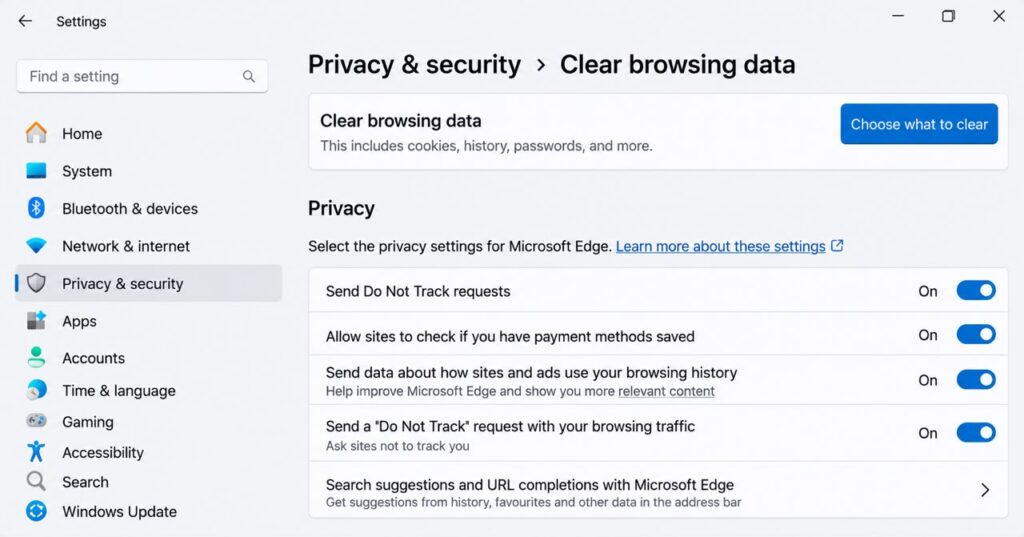 Microsoft Edge is available on Windows, Mac, Android and iOS.
To clear browsing data on its desktop version:
- Open Microsoft Edge.
- Click the three-dot menu.
- Select Settings.
- Open Privacy, search, and services.
- Find the Clear browsing data section.
- Click Choose what to clear.
- Select a time range.
- Choosing browsing history, cached images and files, or cookies depending on your needs.
- Click Clear now.
Edge also provides options for removing saved passwords and autofill information.
Be careful when selecting these categories because you may remove information you still need.
If bowser synchronisation is enabled, deleting certain synced information may also affect other devices connected to the same account.
5. How to Clear Browser Cache in Mozilla Firefox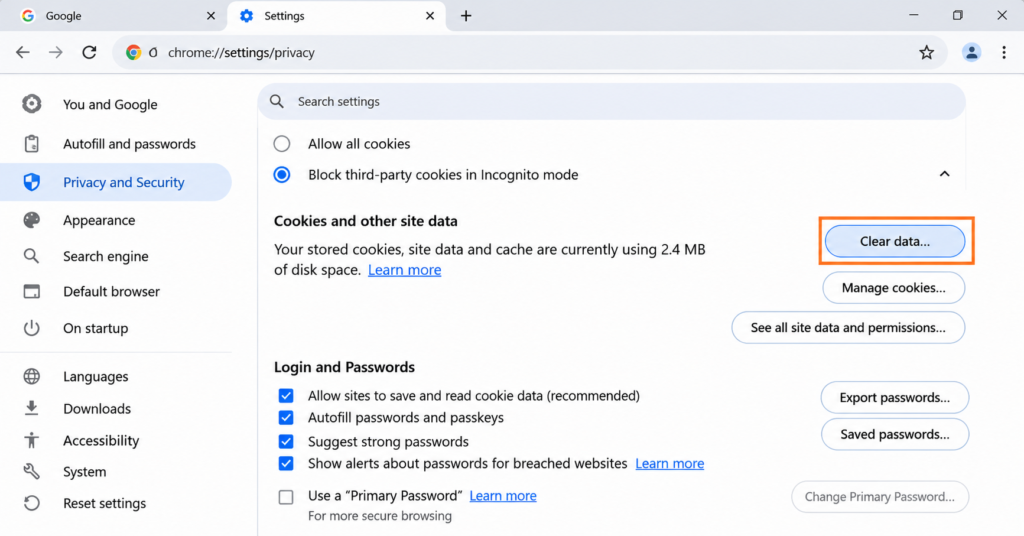
Mozilla Firefox provides controls for deleting cached files, browsing history and cookies.
On a computer:
- Open Firefox.
- Click the menu button.
- Select Settings.
- Open Privacy and Security.
- Find the Cookies and Site Data or Browsing data.
- Select Clear Data or Clear browsing data.
- Choose the information you want to remove.
- Confirm by clicking Clear.
To clear only the cache, select temporary cached files and pages while leaving the other categories unchecked.
You can also use the Firefox menu to access History and select Clear Recent History.
How to Delete Your Google Search History Separately
Here is something many people misunderstand: clearing your Chrome browsing history does not necessarily delete searches saved to your Google Account.
There are two separate records.
For example, you may clear your browser history but still find previous searches associated with your Google account’s activity.
To manage that information:
- Open your Google Account.
- Visit Google My Activity.
- Sign in if requested.
- Find your Search activity or use the activity controls.
- Select the delete option.
- Choose a suitable period, such as a specific date range or all time.
- Confirm the deletion.
You can also review your activity settings to control what information Google saves in the future.
An important distinction: Deleting Google Search activity is not the same as clearing your browser cache. One concerns activity saved to your Google Account; the other concerns data stored by your browser.
Consider an online shopping website.
- Cache may store its product images.
- Cookies may remember your shopping preferences or login session.
- Browsing history may record that you visited its homepage.
- Search history may show that you searched for affordable smartphones.
Clearing your cache, deleting cookies and removing browsing history are three different actions. Knowing which one to choose helps you avoid deleting information unnecessarily.
What Happens When You Clear Browser Cache?
Before deleting cached files, it helps to understand what happens afterwards.
Clearing your browser cache does not damage your phone or computer. It simply removes temporary website resources that the browser has stored.
However, you may notice a few changes.
1. Some websites may load more slowly initially.
When you revisit a website, your browser may need to download images, scripts and other resources again because the previous cached copies have been removed.
Afterwards, subsequent visits may become faster as the browser builds a new cache.
2. Websites may display updated content.
If outdated cached resources were responsible for a display problem, clearing them may allow the website to load its newer files.
3. Your browser may use less storage.
Removing cached files can free up some space, although the amount depends on how much data had accumulated.
4. You may need to sign in to some websites again.
This usually happens when you delete cookies and other site data, rather than when you clear cached files alone.
5. Some website preferences may disappear.
Cookies and website data can remember language preferences, shopping baskets and other settings. Removing them may reset those preferences.
Does Clearing Browser History Delete Everything?
No. This is one of the most important things to understand when discussing online privacy.
Deleting browsing history removes the relevant records stored in your browser. It does not automatically erase every record of your Internet activity.
Consider these distinctions:
- Your browser: Clearing browsing history removes selected records stored locally or synchronised through your browser account.
- Your Google Account: Google Search activity may remain until you delete it separately.
- Websites: Websites may retain information about your visits, interactions or account activity.
- Internet service providers: Your internet provider may retain certain connection records according to its policies and applicable laws.
- Downloaded files: Removing download history does not normally delete the actual files saved on your device.
- Other applications: Clearing Safari history, for example, does not remove browsing records stored independently by other applications.
This means clearing your browser history should not be confused with completely erasing your digital footprint.
Deleting information from your device does not guarantee that every organization or service that previously received that information has deleted its own records.
How Often Should You Clear Your Browser Cache and Search History?
There is no universal schedule for clearing browser data.
You do not need to delete your cache every morning or empty your browsing history every time you finish using the internet.
A more practical approach is to clear specific information when there is a reason to do so.
Consider these situations:
- When a website is not displaying correctly: Clear cached images and files to encourage the browser to retrieve updated resources.
- When using a share computer: Delete your browsing history and consider using a separate browser profile or private browsing.
- When managing personal privacy: Review your browsing and account activity regularly.
- When troubleshooting login problems: Consider clearing cookies for the affected website, but remember that you may need to sign in again.
- When storage becomes limited: Review how much space your browser is using and remove unnecessary temporary files.
For everyday browsing, your browser can manage it’s cache automatically. Constantly clearing it is not needed and can sometimes make websites slower to load again.
Does Clearing Cache Make Your Phone or Computer Faster?
This question appears frequently because many people associate accumulated browser data with slow devices.
The answer is: sometimes, but not always.
Clearing cache can help when a browser is struggling with outdated or corrupted website resources. It may also recover a little storage space.
However, browser cache is designed to improve browsing performance, not reduce it.
If your computer is slow because it has insufficient memory, too many applications running, limited storage or background processes consuming system resources, clearing browser cache alone will not solve the underlying problem.
The same applies to smartphones.
A device that frequently freezes may require a broader examination of its storage, applications and operating system.
The important distinction is that clearing browser cache is a troubleshooting and maintenance measure, not a universal performance upgrade.
Can You Delete Only One Website From Your Browsing History?
Yes. You do not always have to delete your entire browsing history.
Most major browsers provide an option to remove individual history entries.
For example, in Chrome:
- Open Chrome.
- Tap the three-dot menu.
- Select History
- Find the website you want to remove.
- Tap the remove option beside the entry, where available.
On a computer, you can open the History page, locate the website and remove its individual entry.
This is useful when you want to remove a particular website without disturbing the rest of your browsing records.
Is It Safe to Clear Cookies and Cached Files?
Generally, yes. Clearing ordinary browser cache and cookies is a normal maintenance activity.
However, understand the consequences before confirming.
Removing cookies may:
- Sign you out of websites.
- Remove saved shopping preferences.
- Reset website settings.
- Empty certain online shopping baskets.
- Require websites to recognize your device again.
Cached Files are generally less disruptive to remove because they are temporary copies of website resources.
If you want to maintain your current website sessions, consider clearing only the cache rather than deleting cookies.
Can Private Browsing Prevent Search History From Being Saved?
Private browsing, also called Incognito mode in Chrome, is designed to limit the information your browser saves during a private session.
Depending on the browser, it generally does not retain the session’s ordinary browsing history, cookies and site data after all private windows are closed.
However, it does not make you completely anonymous.
Websites you visit, network administrators, employers or schools managing the network, and internet service providers may still be able to observe certain aspects of your online activity.
Private browsing is useful for limiting local browsing records, but it is not a replacement for broader online privacy practices.
Final Thoughts: Take Control of What Your Browser Stores
Your browser is more than a window for accessing websites. It is also a tool that stores information to make everyday internet use more convenient.
Cached images help pages load faster. Cookies allow websites to remember certain preferences. Browsing history makes it easier to revisit previously opened pages.
These features are useful, but knowing how to manage them is equally important.
Whether you use Chrome, Safari, Microsoft Edge or Firefox, learning to clear browser cache and delete search history gives you greater control over the information stored on your device.
You do not have to erase everything regularly. Instead, understand what each category of browser data does, identify what you want to remove and select the appropriate settings.
A little knowledge of your browser’s privacy settings can make everyday internet use more manageable, informed and secure.