
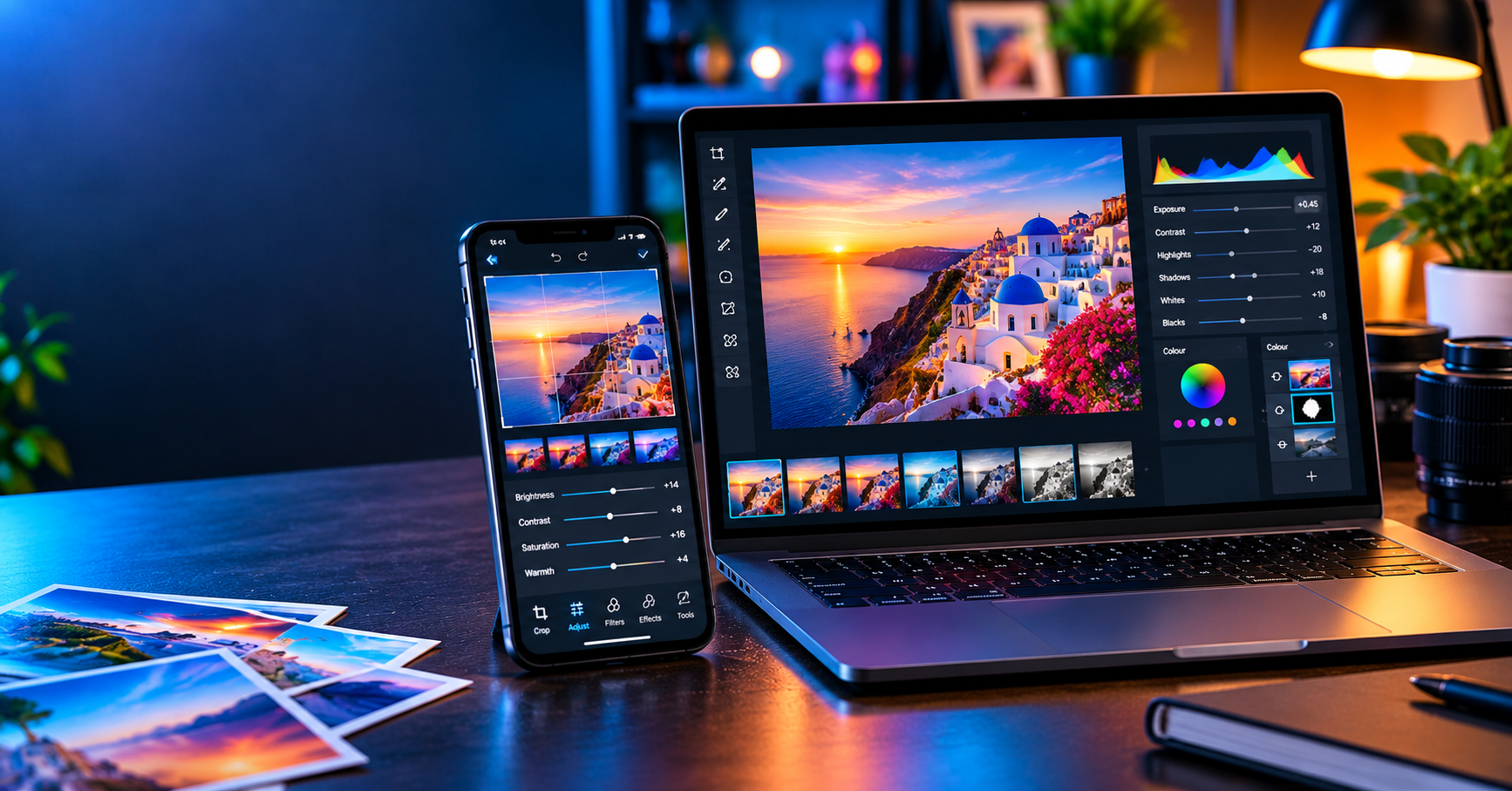
 Stop Paying for Filters: The Best Free Photo–Editing Apps
Your Photo Does Not Need a Subscription
There is something almost impressive about modern photo-editing apps.
You download one because you want to make a photo look slightly better. Maybe the lighting is awful. Maybe the colors look dull. Maybe your perfectly timed sunset looks more like a screenshot from a security camera.
So you open the app.
“Free”
Great.
You import your photo, tap a few buttons and discover the feature you actually need is premium.
You close the message.
Another one appears.
“Start your free trial.”
You close that.
“Unlock everything for just $–”
No.
At this point, you are not editing a photograph. You are fighting your way through a digital shopping mall where every door leads to a checkout page.
And let us not forget the apps that allow you to edit for free, only to slap their enormous watermark across your finished masterpiece.
Fortunately, not every photo editor is determined to empty your bank account.
There are genuinely capable free photo-editing apps that give you useful tools without demanding a monthly subscription before you can adjust the brightness.
Some are designed for quick mobile editing. Others offer surprisingly powerful desktop-style controls through your browser.
So, if you are tired of subscription traps and just want your photos to look better, here are four free editors worth trying.
What Makes a Free Editor Worth Using?
“Free” is a dangerously flexible word in the app world.
Technically, an app can be free while locking almost everything useful behind a paywall. That is not particularly helpful when you are standing there trying to remove an ugly shadow from your photograph.
For the list, the rules are simple.
The free version needs to be genuinely useful. Basic adjustments should not require a credit card.
Watermarks should not ruin your exported images. your photo does not need the app’s autograph.
Advertisements must be tolerable. Free services need a way to make money, but nobody enjoys an ad appearing every time they tap a button.
And finally, the editor needs to offer real creative control rather than simply throwing 50 nearly identical filters at you.
With that out of the way, let us get editing.
Snapseed: The Quietly Powerful One
Snapseed does not behave like an app desperately trying to sell you something.
You open it, choose your photo and get straight to work.
There is not a giant subscription presentation waiting to greet you. There is not a dramatic “LIMITED-TIME OFFER” flashing across the screen.
Just your photograph and a toolbox.
The interface is relatively clean, although Snapseed’s gesture-based controls can take a little getting used to.
Instead of traditional sliders everywhere, some adjustments use vertical swipes to select a setting and horizontal swipes to change its strength.
At first, it feels slightly strange.
Then your brain adapts.
And suddenly you are adjusting exposure, contrast and saturation without thinking about it.
The Superpower
Precision.
Snapseed is excellent when you want to improve a photograph without making it look like it has been attacked by a filter.
Its Selective tool lets you target specific areas of an image instead of applying an adjustment to everything.
You can brighten a person’s face while leaving the background alone.
You can also use tools such as Curves, White Balance, Healing, Perspective and Details to make much more controlled edits.
That is what makes Snapseed interesting: It feels simple enough for beginners while offering enough depth for people who want to learn proper photo editing.
The Catch
The interface is not immediately obvious.
If you are expecting giant buttons labelled MAKE PHOTO BEAUTIFUL, you may spend a few minutes wondering where everything went.
But once you learn the workflow, Snapseed becomes remarkably quick.
And perhaps its biggest selling point is the simplest one:
It does not constantly remind you that you have not subscribed.
Best user:
- Casual photographers who want to learn real editing.
- Smartphone photographers
- Beginners who want room to grow
- Anyone who does not want a subscription
Not ideal for: People creating complicated graphics, thumbnails or multi-layer designs.
Photopea: The Browser Editor With Serious Ambitions
Photopea is different.
You do not really think of it as a typical phone photo editor.
You open it in the browser and suddenly you are staring at something that looks suspiciously like professional image-editing software.
There are layers.
Menus.
Selection tools.
Masks.
Adjustment options.
Panels everywhere.
If you are familiar with Photoshop, the environment will feel surprisingly familiar.
If you are not, you may briefly wonder whether you accidentally opened the cockpit controls for a Boeing.
But give it time.
The Superpower
Layers.
This is where Photopea becomes extremely useful.
Instead of treating your photograph as one flat image, you can build a project from multiple elements.
You can place text on one layer, a photograph on another and additional graphics somewhere else.
That makes Photopea particularly useful for bloggers and content creators.
Need a blog banner?
A YouTube thumbnail?
A social media graphics?
A promotional image containing several elements?
Photopea can handle jobs that basic mobile editors are not designed for.
It also supports a wide range of file formats, including PSD, PNG, JPG, PDF and SVG.
The Catch
There are advertisements in the free experience.
That is understandable, but they can make an already busy interface feel even busier.
The other problem is the learning curve.
Photopea is not necessarily the editor you want when you are standing outside a restaurant trying to make your lunch photo slightly brighter.
It shines when you are sitting down with a bigger screen and actually designing something.
On a smartphone, meanwhile, those tiny controls can make your fingers feel approximately the size of tennis rackets.
Best user:
- Bloggers
- Graphic designers
- Students
- Content creators
- Small-business owners
- Anyone working with PSD files
Not ideal for: Someone who just wants to brighten a selfie in 30 seconds.
Lightroom Mobile: The Photographer’s Free-Tier Temptation
Lightroom Mobile has a different personality.
It feels less like a casual filter app and more like a photography tool that happens to live on your phone.
The interface is polished, organized and packed with controls.
You can adjust exposure, contrast, highlights, shadows, white balance, color and other aspects of photograph.
This is where Lightroom becomes especially appealing to people who want to understand why their photo looks wrong rather than simply covering the problem with filter.
The Superpower
Color and tonal control.
Lightroom gives you considerable control over the mood of an image.
A dull photograph can become brighter and more balanced.
An overly harsh image can be softened.
Colors can be adjusted carefully rather than pushed into cartoon territory.
The free tier provides plenty of useful editing capabilities, making Lightroom a serious option for everyday photography.
For someone learning photography, it can also be a useful way to understand how exposure, highlights, shadows and color affect an image.
The Catch
Yes, Adobe knows you are there.
And Adobe would very much like you to become a paying customer.
Several advanced features―including tools such as masking, healing and some other premium capabilities―are locked behind a subscription.
That does not make the free version useless.
Far from it.
But you will occasionally tap something interesting, only to discover that you have just walked into the Premium section.
It is the digital equivalent of seeing a beautiful restaurant menu and discovering the prices are written in invisible ink.
Still, if you are serious about photography, Lightroom’s free tools are worth exploring.
Best user:
- Photography enthusiasts
- People shooting lots of photos
- Users who care about exposure and color
- Beginners moving toward more serious photography
- People already familiar with Adobe’s ecosystem
Not ideal for: Someone who wants every advanced tool for free.
Pixlr: The Creative All-Rounder
Pixlr takes a slightly differs approach.
Rather than focusing exclusively on traditional photography, it sits somewhere between photo editor and creative design tool.
That makes it interesting for people who do not just edit photographs but also create content around them.
The interface offers plenty of tools, effects and creative options.
It can feel busier than Snapseed, but that is partly because Pixlr is trying to do more.
You can use it through a browser, making it useful when you are working on a laptop or desktop.
The Superpower
Versatility.
Pixlr makes sense for bloggers, social-media creators and anyone who regularly needs visuals.
You might start with a photograph and end up creating a thumbnail, promotional graphic or social post.
That flexibility is useful because content creators rarely need just one type of image.
You need the photograph.
Then the banner.
Then the thumbnail.
Then the social-media graphic.
Then, somehow, someone asks for a version in another size.
Pixlr can help with that creative workflow.
The Catch
The free experience comes with advertisements, and some features are reserved for premium users.
So, once again, you will encounter the occasional locked tool waving at you from behind the paywall.
Still, the free functionality is substantial enough to make Pixlr worth considering.
Just remember to save important projects properly when working in the browser.
Because losing an hour of editing because your browser decided it was time to forget everything is the kind of character development nobody requested.
Best user:
- Bloggers
- Social-media creators
- Small business
- Students
- People making thumbnails and promotional graphics
- Beginners who want an approachable interface
Not ideal for: Photographers looking primarily for a dedicated, traditional photo-development workflow.
Phone vs. Browser: Where Should You Edit?
The answer depends on what you are doing.
Phone editing wins for speed.
If you have just taken a photograph and want to fix the exposure, crop it and post it, a mobile editor such as Snapseed or Lightroom makes perfect sense.
Everything is right there.
Your camera is in your hand, your editor is in your hand and your finished photograph can be online within minutes.
Browser editing wins for complexity.
Tools such as Photopea and Pixlr give you more screen space and layered designs, thumbnails and graphics easier to manage.
Trying to edit a complicated multi-layer project on a six-inch touchscreen can be an exercise in patience.
So the basic rule is:
Phone for quick photography. Browser for bigger creative jobs.
Conclusion: Keep Your Money, Edit Your Photos
The best thing about these editors is not that they are free.
It is that they prove free does not have to mean useless.
Snapseed can give you surprisingly precise mobile editing without drowning you in subscription prompts.
Photopea brings serious, layer-based editing into your browser.
Lightroom Mobile gives photographers powerful control while keeping a useful collection of tools available without paying.
And Pixlr offers a flexible environment for people who want to combine photography with graphic design.
None of them is perfect.
You will encounter ads, locked features, unfamiliar controls or the occasional interface decision that makes you wonder who approved it.
But that is still better than paying a monthly subscription simply because you wanted to make your vacation photo a little brighter.
So before handing over your card details to the next app promising “Premium filters for only $4.99 a week,” try the free tools first.
Your photographs will improve.
Your wallet definitely will.