
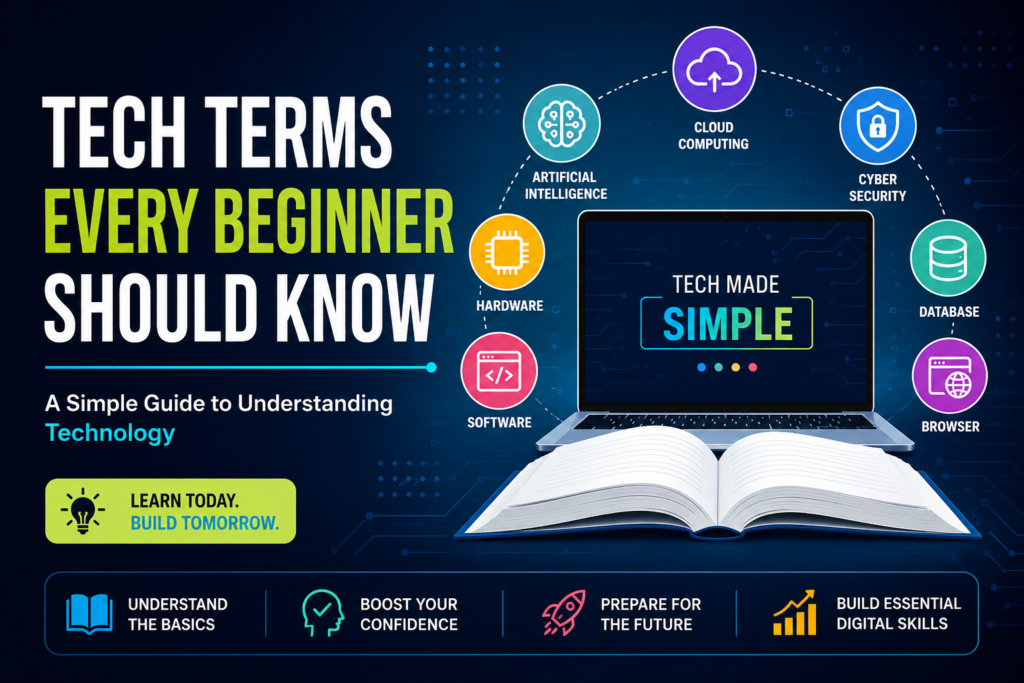
Tech Terms Every Beginner should know: A Simple Guide to Understanding Technology
Have you ever read a technology article or watched a gadget review and felt overwhelmed by unfamiliar words like algorithm, cloud computing, or bandwidth? If so, you are not alone.
The technology world has its own vocabulary, and for beginners, it can sometimes feel like learning a new language. The best part is that you do not need to memorize hundreds of complicated definitions to understand technology. Learning a handful of common tech terms can make it much easier to follow conversations, use digital tools with confidence, and even begin learning valuable tech skills.
Whether you are interested in computers, smartphones, web development, cybersecurity, artificial intelligence, or simply want to become more tech-savvy, understanding these essential terms is the perfect place to start.
Let us break down some of the most important tech terms every beginner should know.
1. Hardware
Hardware refers to the physical parts of computer or electronic device that you can touch.
Examples include:
- Keyboard
- Mouse
- Monitor
- Processor
- Hard drive
- Smartphone screen
Think of hardware as the body of a computer.
2. Software
Software is the collection of programs and applications that tell hardware what to do.
Examples include:
- Microsoft Word
- Google Chrome
- Photoshop
- Windows
- Android
Without software, hardware would simply sit there unable to perform useful tasks.
3. Operating System (OS)
An operating system is the main software that manages your computer or smartphone.
Popular operating systems include:
- Windows
- macOS
- Linux
- Android
- iOS
The operating system acts as a bridge between you and the device.
4. Application (App)
An app is a software designed for a specific purpose.
Examples include:
- TikTok
- Spotify
- Zoom
- Gmail
Apps make it easy to perform everyday tasks on your phone or computer.
5. Browser
A browser is software used to access websites.
Popular browsers include:
- Google Chrome
- Microsoft Edge
- Mozilla Firefox
- Safari
- Opera
Without a browser, you would never be able to explore the internet.
6. Website
A website is a collection of web pages available on the internet.
Examples include:
- News websites
- Online stores
- Blogs
- Educational websites
Every website has its own unique address.
7. URL
A URL (Uniform Resource Locator) is the address of a webpage.
For example:
https://www.example.com
Typing the correct URL takes you directly to a website.
8. Domain Name
A domain name is the easy-to-read name of a website.
Instead of remembering numbers, people remember names like:
- google.com
- Wikipedia.org
It makes navigating the Internet much simpler.
9. Internet
The internet is a global network connecting billions of devices around the world.
It allows people to:
- Browse websites
- Send emails
- Watch videos
- Shop online
- Learn new skills
10. Wi-Fi
Wi-Fi is a wireless technology that allows devices to connect to the Internet without cables.
Most homes, schools, offices, and cafés use Wi-Fi networks.
11. Cloud Computing
Cloud computing means storing data and running services over the Internet instead of relying only on your device.
Examples include:
- Google Drive
- Dropbox
- OneDrive
- iCloud
The cloud allows you to access files from almost anywhere.
12. Data
Data is information that computers collect, process, and store.
Examples include:
- Photos
- Videos
- Documents
- Customer information
- Numbers
Nearly every digital activity generates data.
13. Database
A database is an organized collection of data.
Businesses use database to store:
- Customer records
- Inventory
- Financial information
- Student records
Database make information easy to search and manage.
14. CPU
The CPU (Central Processing Unit) is often called the brain of the computer.
It performs calculations and processes instructions that allow software to run efficiently.
15. RAM
RAM (Random Access Memory) is a temporary memory used while your device is running.
More RAM generally helps:
- Open multiple apps
- Switch between programs faster
- Improve overall performance
16. Storage
Storage is where files remain even after your device is turned off.
Examples include:
- SSD
- Hard drive
- Memory card
Unlike RAM, storage keeps your information permanently until you delete it.
17. Algorithm
An algorithm is a set of instructions used to solve a problem or complete a task.
Social media platforms use algorithms to decide which posts appear in your feed.
Search engines also rely on algorithms to display relevant search results.
18. Artificial Intelligence (AI)
Artificial intelligence enables computer to perform tasks that normally require human intelligence.
AI powers:
- Voice assistants
- Translation tools
- Recommendation systems
- Image recognition
- Chatbots
AI continues to transform many industries.
19. Bug
A bug is an error in software that causes unexpected behavior.
Examples include:
- An app crashing
- Buttons not working
- Incorrect calculations
Developers regularly fix bugs through software updates.
20. Update
An update is a newer version of software that improves performance, fixes bugs, and strengthens security.
Installing update helps keep your devices safe and running smoothly.
21. Cybersecurity
Cybersecurity involves protecting computers, networks, and personal information from cyber threats.
Good cybersecurity habits include:
- Using strong passwords
- Enabling two-factor authentication
- Avoiding suspicious links
- Updating software regularly
22. Firewall
A firewall acts as a security barrier between your device and potential harmful Internet traffic.
It helps prevent unauthorized access to your system.
23. Encryption
Encryption converts readable information into coded data that only authorized users can access.
Banks, messaging apps, and online shopping websites use encryption to protect sensitive information.
24. Download and Upload
Downloading means receiving files from the Internet to your device.
Uploading means sending files from your device to the Internet.
You download movies and upload photos to social media.
25. User Interface (UI)and User Experience (UX)
User Interface (UI) refers to the visual elements you interact with, such as buttons, menus, and icons.
User Experience (UX) focuses on how easy, efficient, and enjoyable it is to use a website or application.
Together, UI and UX determine how people feel while using digital products.
Why Learning Tech Terms Matters
Understanding basic technology vocabulary helps you:
- Learn new digital skills faster
- Communicate confidently about technology
- Troubleshoot simple problems
- Understand online tutorials
- Prepare for tech careers
- Make informed decisions when buying devices
- Stay safer online
These terms provide a strong foundation for anyone interested in technology.
Conclusion
Technology is part of our daily lives, from smartphones and laptops to online banking, social media, and cloud services. While technical jargon may seem intimidating at first, learning these essential terms makes technology far less confusing.
You do not need to become an expert overnight. Start by familiarizing yourself with these basic concepts and look for opportunities to use them in your daily digital activities. Over time, you will find it easier to understand new technologies, follow tech news, and explore more advanced topics with confidence.
Remember, every Technology expert was once a beginner. Building your knowledge one term at a time is a simple yet powerful way to grow your digital skills and stay prepared for our increasingly connected world.